写真一括貼り付けVBA(セル結合、縦横比固定)

写真の縦横比を固定した状態で結合されているセルに、一括で写真の貼り付けを行う処理を紹介します。

ボタン押下時の実行内容

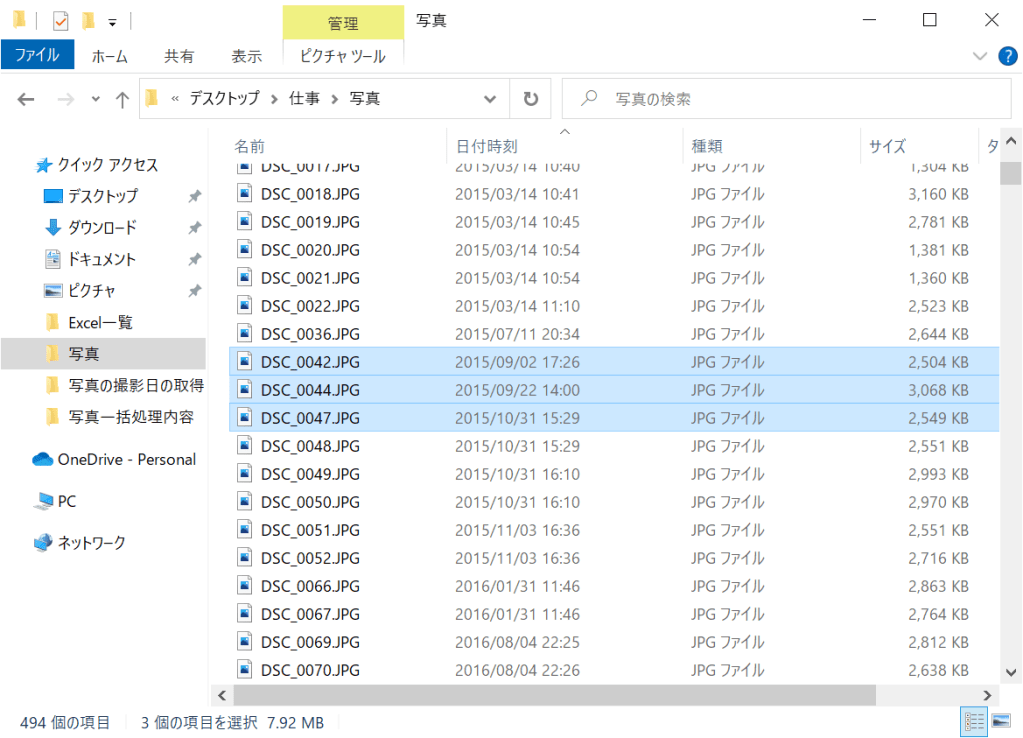
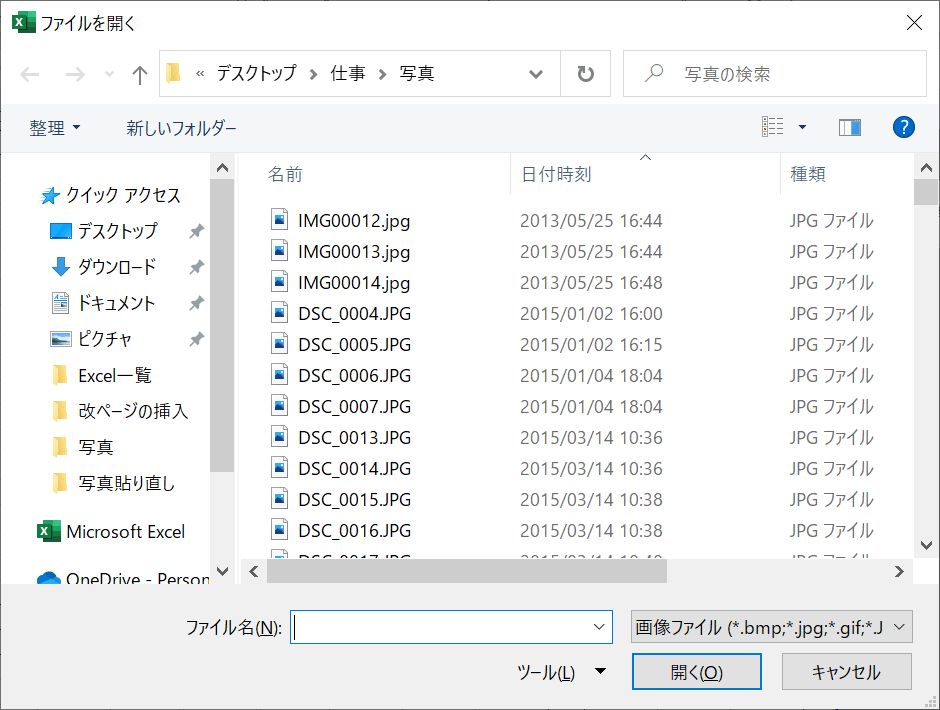
・貼り付けたい写真の一覧を選択

・印刷範囲を設定しながら写真を指定の位置に貼り付け

前提条件

選択された写真は結合したセルに貼るように処理をしています。

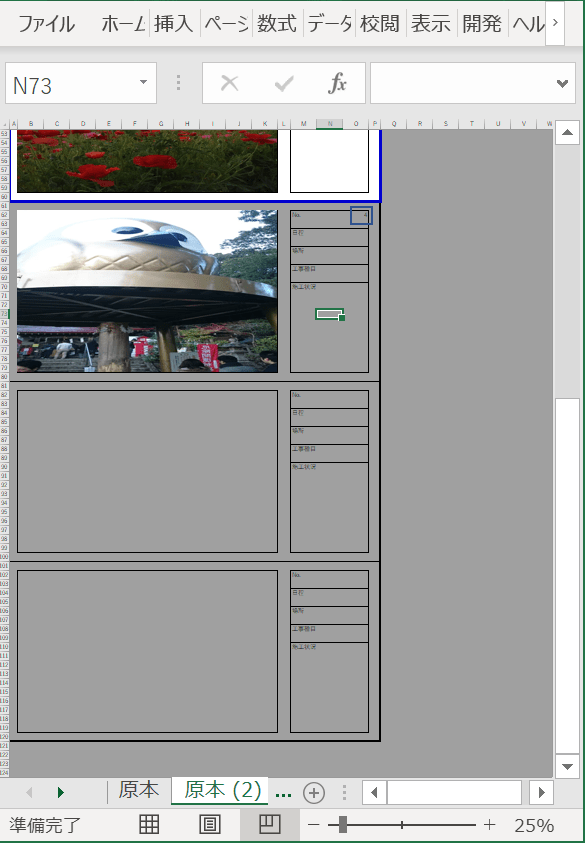
結合したセルの大きさに合わせて写真の位置調整を行っているため、セル結合がされていない箇所に写真の貼り付けを行うと警告を返すようにしています。

セルが結合していないパターンで写真を貼り付けを行いたい場合は、写真の一括貼り付けVBAをご参考願います。

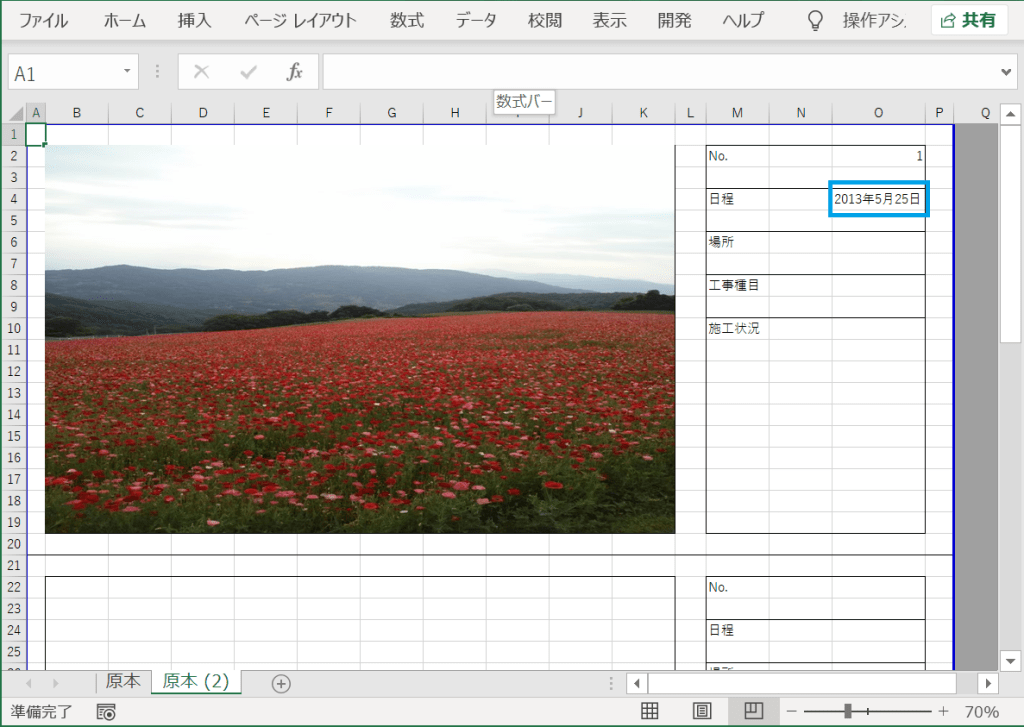
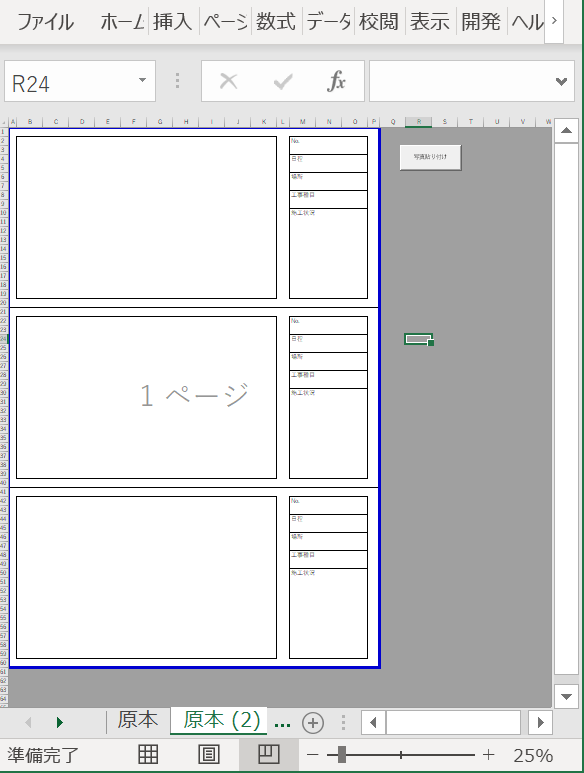
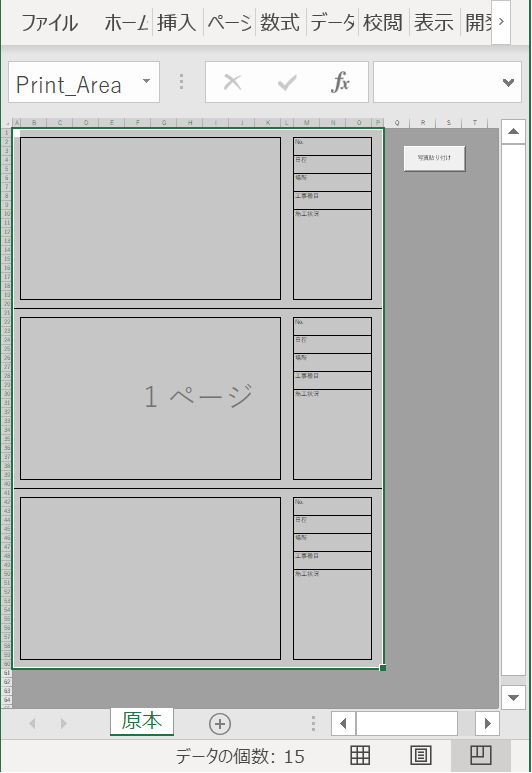
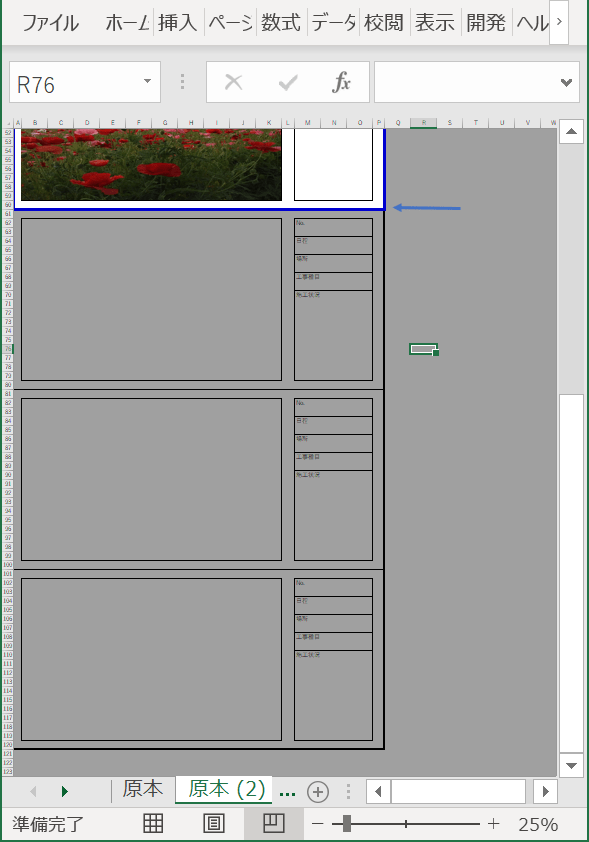
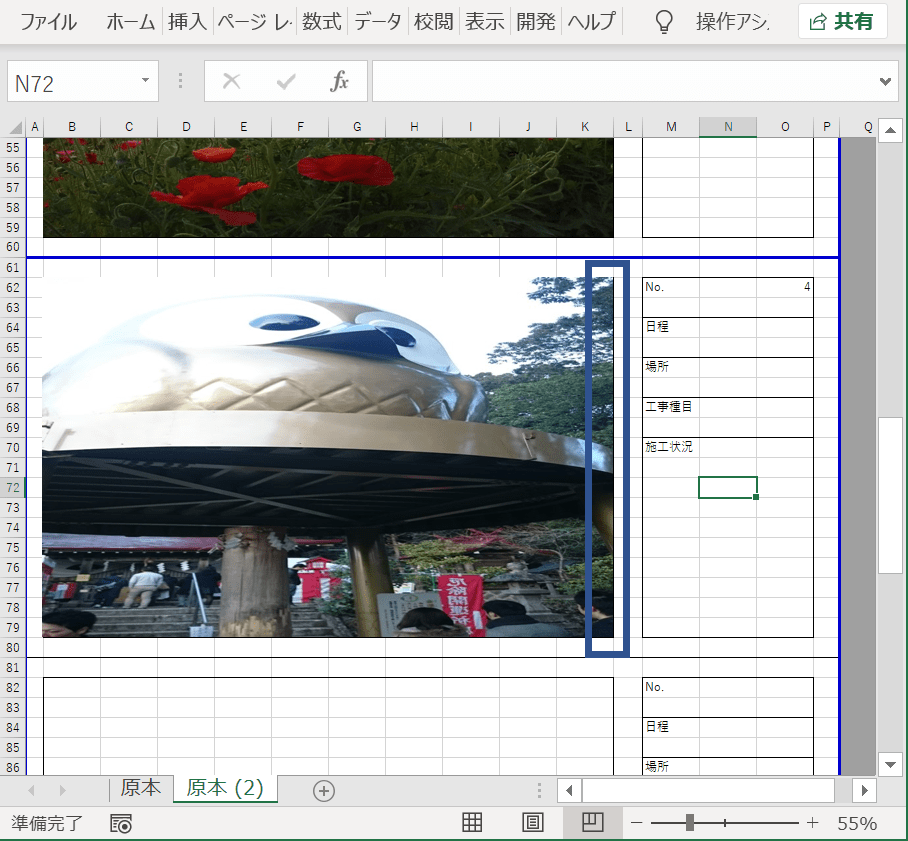
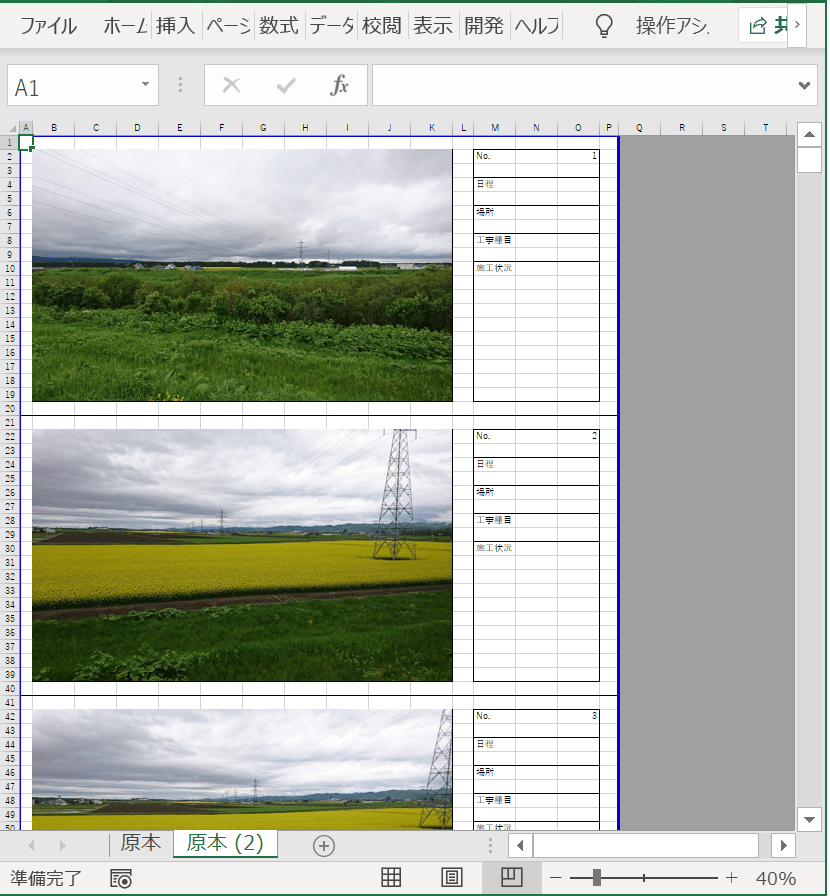
実行前

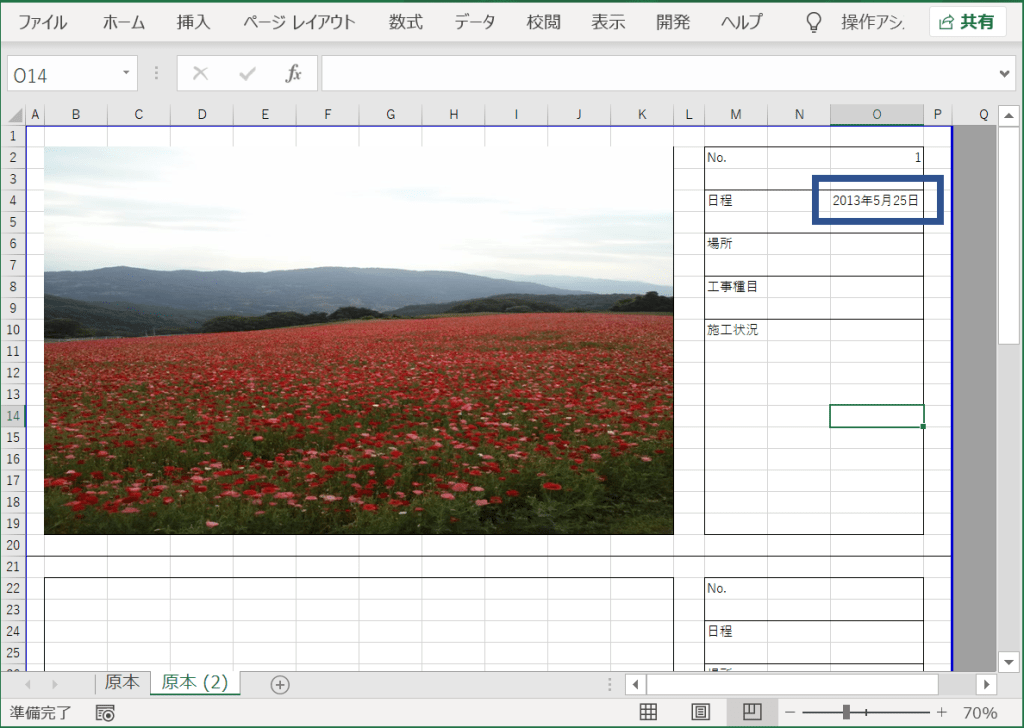
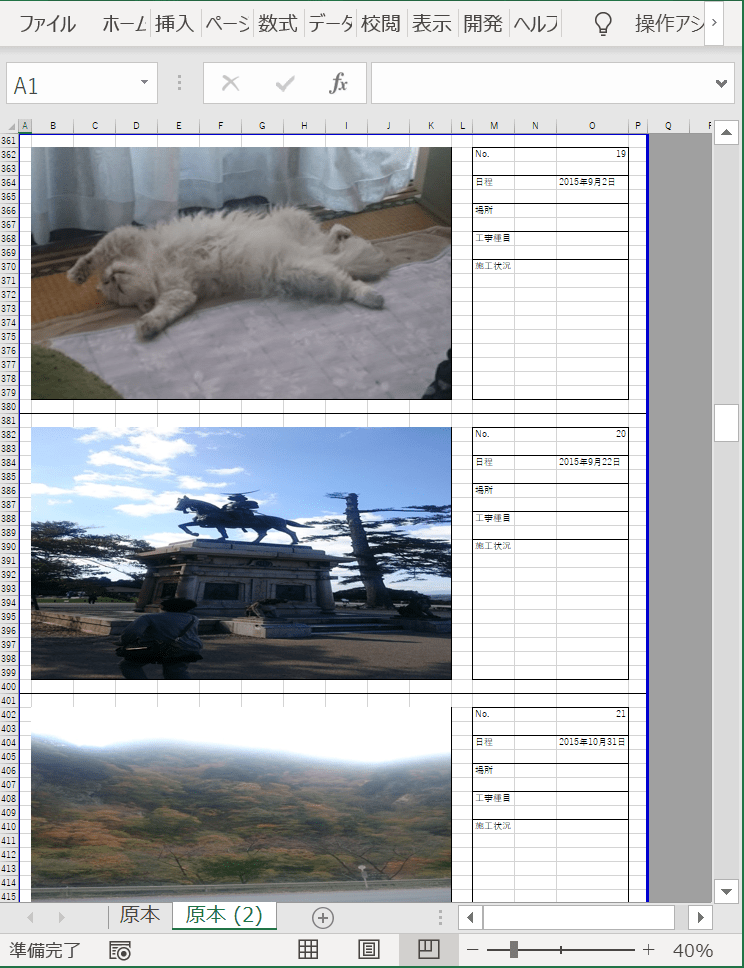
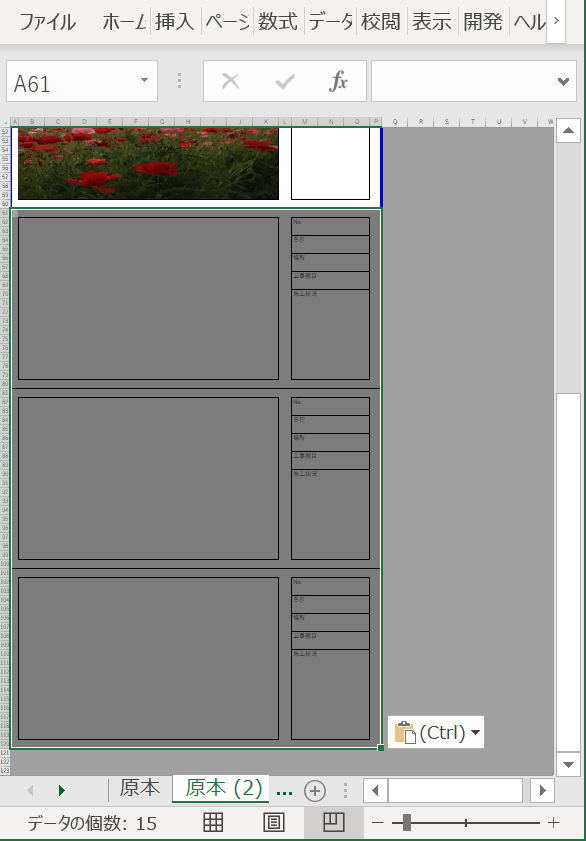
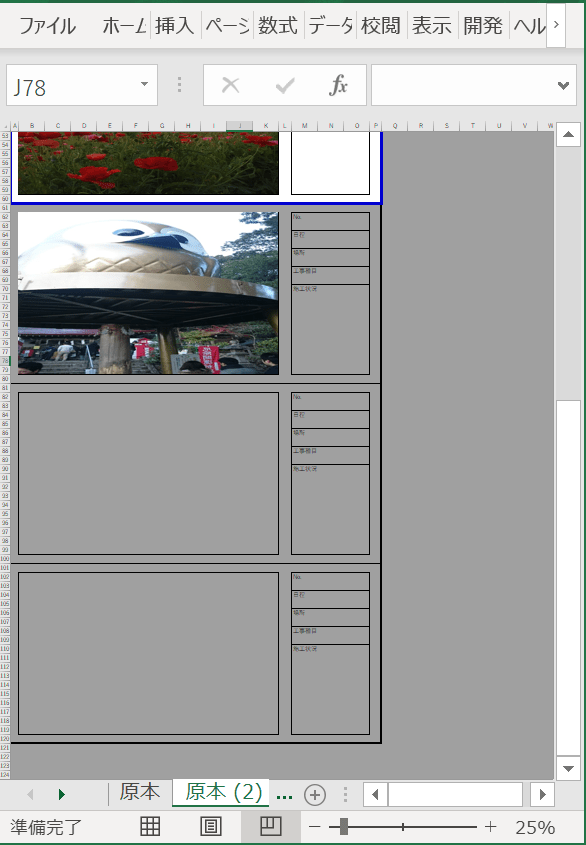
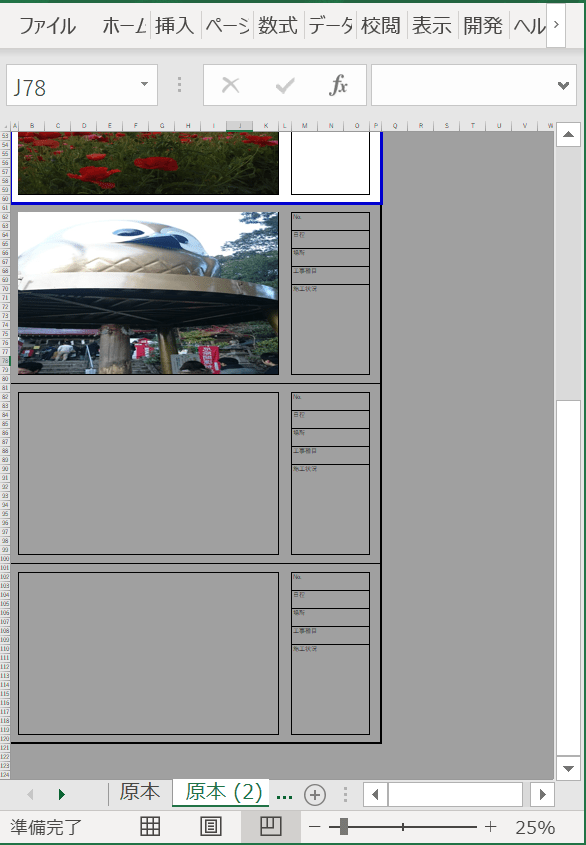
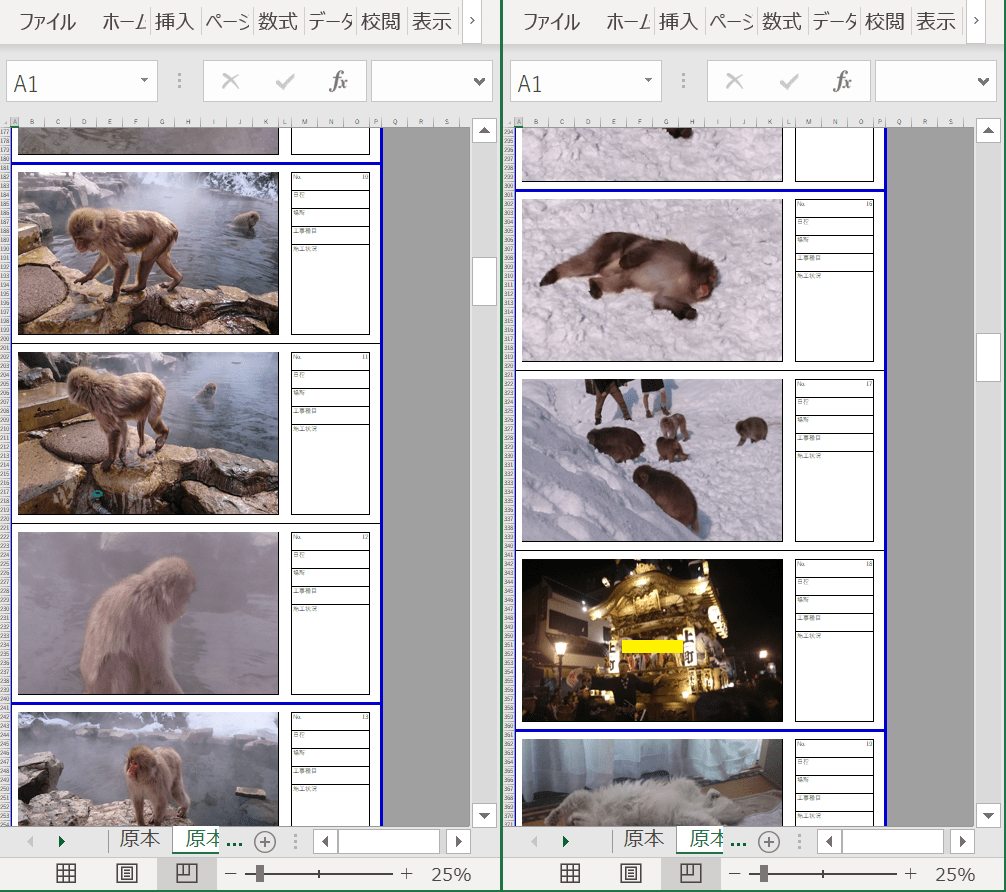
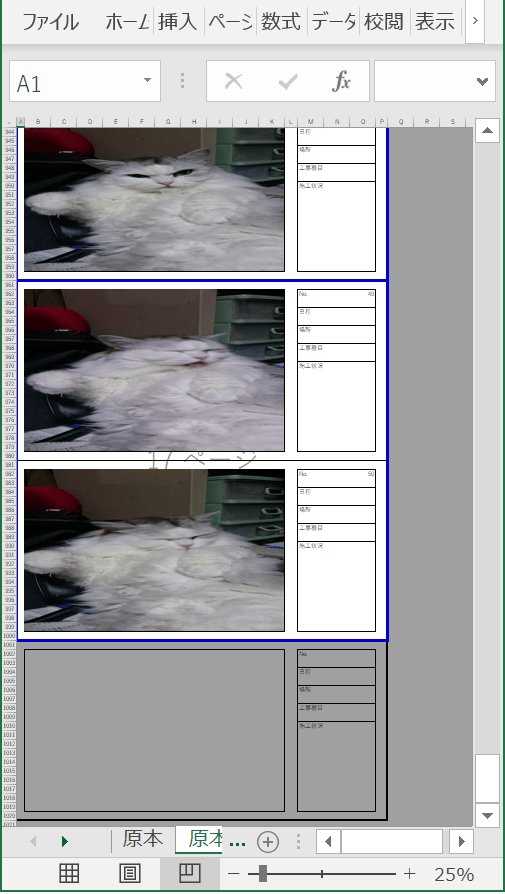
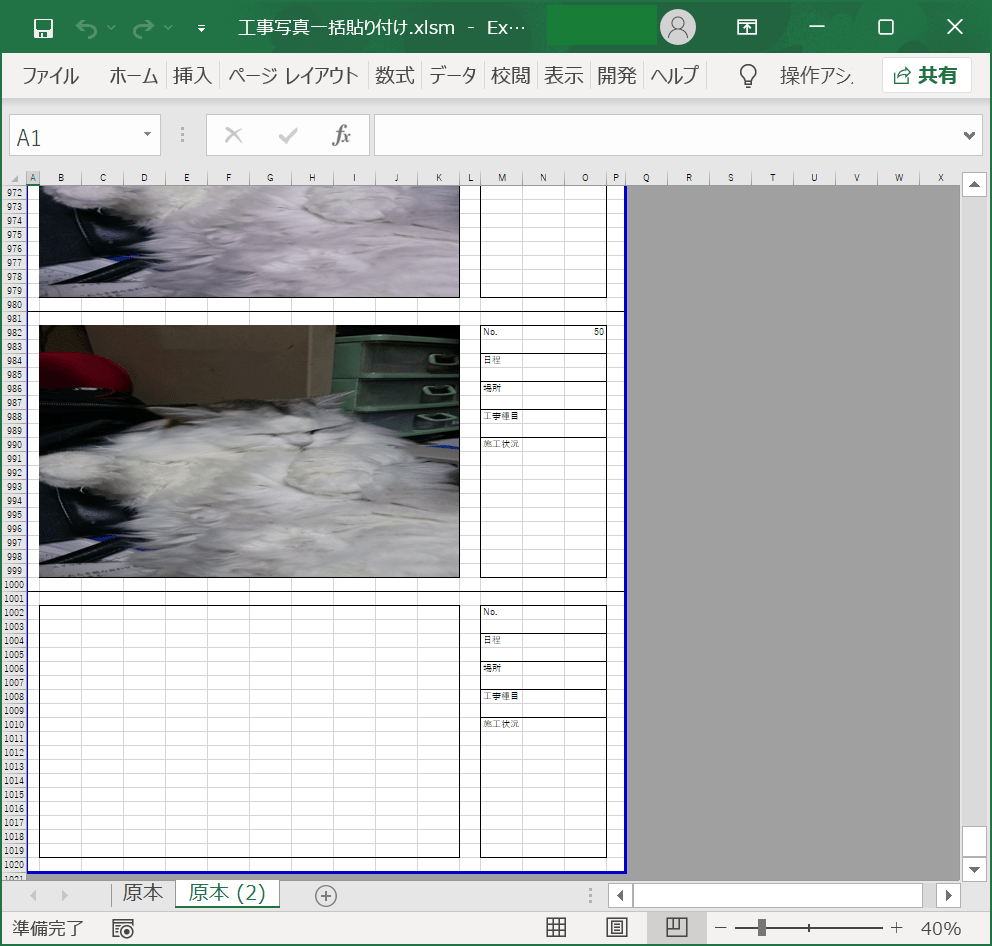
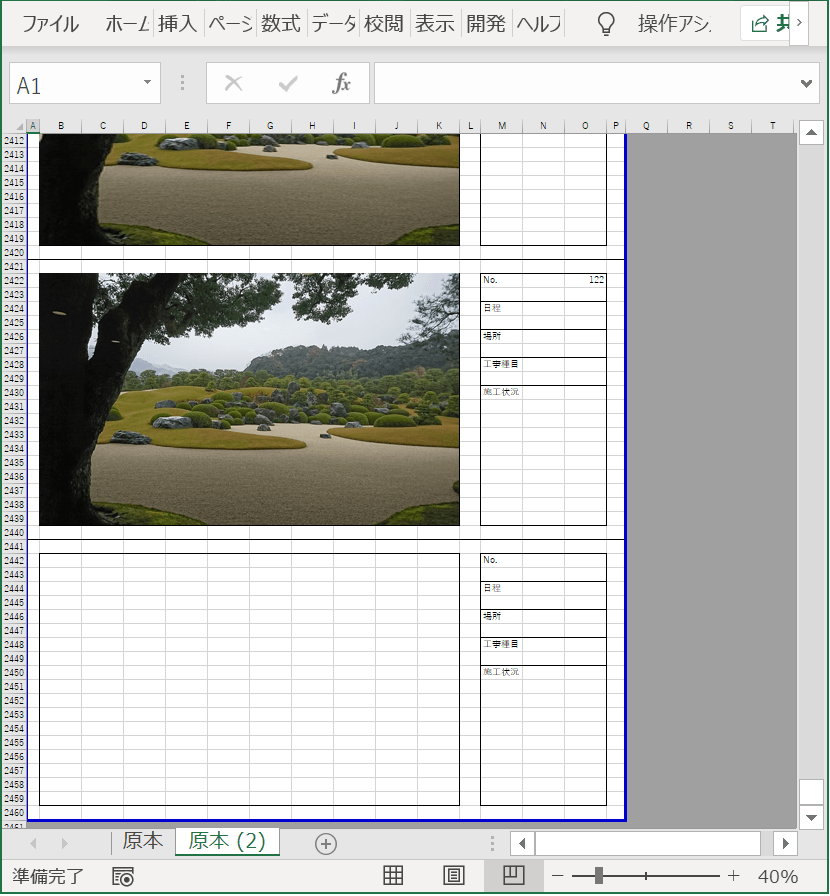
実行後

実行内容

結合したセルに、写真の縦横比を固定した状態で貼り付けています。

写真の大きさは結合したセルの高さに合わせるように設定しています。

写真貼り付け押下時の処理内容

Sub 写真貼り付け_Click()
    
    'ループ関数を設定
    Dim i As Integer
    Dim currentRow As Integer
    
    Dim FileName As Variant
    Dim dblscal As Double
    Dim str As String
    
    '撮影日
    Dim day As Date
    Dim ObjShell As Object
    Dim ObjFolder As Object
    Dim filePath As Variant
    Dim file As Variant
    

    '写真位置設定用変数
    Dim photoCell As Range
    
    Dim shpTemp As Shape  ' 一時的な Shape オブジェクト参照用
  
    '写真の一覧を取得
    FileName = Application.GetOpenFilename( _
        filefilter:="画像ファイル,*.bmp;*.jpg;*.gif;*.JPG", _
        MultiSelect:=True)
    '写真ファイルを選択しなかった場合は処理を終わらせる
    If Not IsArray(FileName) Then Exit Sub
    
    '処理中画面描写をしない
    Application.ScreenUpdating = False
        
    
    '印刷範囲の初期設定
    str = Range(Cells(1, 1), Cells(60, 16)).Address
    '原本シートのコピーを末尾に追加
    Worksheets("原本").Copy After:=Worksheets(Worksheets.Count)
    'ボタンを削除
    On Error Resume Next  ' エラーを無視して続行
    ActiveSheet.DrawingObjects.Delete
    On Error GoTo 0  ' エラー無視を解除
    
    'シェルの機能の参照
    Set ObjShell = CreateObject("Shell.Application")
    
    ' 初期位置設定
    currentRow = 2
    
    '取得した写真リストをセルに貼り付け
    For i = LBound(FileName) To UBound(FileName)
        ' 3枚ごとに新しいページを作成
        If i <> 1 And i Mod 3 = 1 Then
            Worksheets("原本").Range(str).Copy
            Cells((i \ 3) * 60 + 1, 1).PasteSpecial
            Application.CutCopyMode = False
            ActiveSheet.HPageBreaks.Add before:=Cells(((i \ 3) * 60) + 1, 1)
            currentRow = ((i \ 3) * 60) + 2  ' 新しいページの開始行
        End If
        
        ' B2セルを選択(このセルは既に結合されていることを前提)
        Set photoCell = Cells(currentRow, 2)  ' B列 (2)
        
        ' 結合セルの範囲を取得(結合済みの場合)
        Dim mergedRange As Range
        If photoCell.MergeCells Then
            Set mergedRange = photoCell.MergeArea
        Else
            ' 結合されていない場合は警告を表示
            MsgBox "セル " & photoCell.Address & " は結合されていません。"
            Set mergedRange = photoCell
        End If
        
        '選択ファイル - 縦横比を保持して貼り付け
        Set shpTemp = ActiveSheet.Shapes.AddPicture( _
            FileName:=FileName(i), _
            linktofile:=False, _
            savewithdocument:=True, _
            Left:=mergedRange.Left + 1, _
            Top:=mergedRange.Top + 1, _
            Width:=-1, _
            Height:=-1)
            
        '縦横比を保持
        shpTemp.LockAspectRatio = msoTrue
        
        ' 結合セルの高さに合わせて写真のサイズを調整
        shpTemp.Height = mergedRange.Height - 1
        
        ' 写真の位置を範囲の中央に調整
        shpTemp.Left = mergedRange.Left + (mergedRange.Width - shpTemp.Width) / 2
        shpTemp.Top = mergedRange.Top + (mergedRange.Height - shpTemp.Height) / 2
        
        '写真の貼り直し
        shpTemp.Select
        Selection.Cut
        ActiveSheet.PasteSpecial Format:="図 (JPEG)", Link:=False, DisplayasIcon:=False
        
        ' 写真の位置を調整
        With Selection.ShapeRange
            .LockAspectRatio = msoTrue
            .Height = mergedRange.Height - 2
            .Left = mergedRange.Left + (mergedRange.Width - .Width) / 2
            .Top = mergedRange.Top + (mergedRange.Height - .Height) / 2
        End With
        
        Application.CutCopyMode = False
        
        'Noに数を記入 
        Cells(currentRow + 1, 11 + 4) = i  
        
        'ファイルパスの取得
        filePath = Left(FileName(i), InStrRev(FileName(i), "\"))
        'ファイル名の取得
        file = Mid(FileName(i), Len(filePath) + 1)
        
        '写真データを参照
        On Error Resume Next  ' エラーを無視
        Set ObjFolder = ObjShell.Namespace(filePath).ParseName(file)
        
        '写真の撮影日を取得
        If Not ObjFolder Is Nothing Then
            day = ObjFolder.ExtendedProperty("System.Photo.DateTaken")
            '写真のデータの参照を解放
            Cells(currentRow + 3, 11 + 4) = Format(day, "yyyy年m月d日")
        End If
        Set ObjFolder = Nothing
        On Error GoTo 0  ' エラー無視を解除
        
        ' 次の写真は20行下に配置
        currentRow = currentRow + 20
        
    Next i
    
    'シェルの解放
    Set ObjShell = Nothing
    
    '印刷範囲を設定
    Dim lastRow As Long
    lastRow = ((UBound(FileName) - 1) \ 3 + 1) * 60
    str = Range(Cells(1, 1), Cells(lastRow, 16)).Address
    
    ActiveSheet.PageSetup.PrintArea = str
    
    Cells(1, 1).Select
    
    '画面描写を実行
    Application.ScreenUpdating = True
    
End Sub

写真の縦横比を固定する処理

        '選択ファイル - 縦横比を保持して貼り付け
        Set shpTemp = ActiveSheet.Shapes.AddPicture( _
            FileName:=FileName(i), _
            linktofile:=False, _
            savewithdocument:=True, _
            Left:=mergedRange.Left + 1, _
            Top:=mergedRange.Top + 1, _
            Width:=-1, _
            Height:=-1)
            
        '縦横比を保持
        shpTemp.LockAspectRatio = msoTrue

shpTemp.LockAspectRatio = msoTrueの処理で縦横比を固定しています。

msoTrueがmsoFalseになると縦横比は固定されません。

結合したセルの高さに合わせて写真の大きさを変更する処理

        ' B2セルを選択(このセルは既に結合されていることを前提)
        Set photoCell = Cells(currentRow, 2)  ' B列 (2)
        
        ' 結合セルの範囲を取得(結合済みの場合)
        Dim mergedRange As Range
        If photoCell.MergeCells Then
            Set mergedRange = photoCell.MergeArea
        Else
            ' 結合されていない場合は警告を表示
            MsgBox "セル " & photoCell.Address & " は結合されていません。"
            Set mergedRange = photoCell
        End If
 
      
       '~~~~~略~~~~~

        
        ' 結合セルの高さに合わせて写真のサイズを調整
        shpTemp.Height = mergedRange.Height - 1

shpTemp.Height = mergedRange.Height – 1 は

変数(今回は写真).高さ = 変数(今回は結合したセル).高さ – 1

のイメージです。

写真の撮影日付の取得処理について

        'ファイルパスの取得
        filePath = Left(FileName(i), InStrRev(FileName(i), "\"))
        'ファイル名の取得
        file = Mid(FileName(i), Len(filePath) + 1)
        
        '写真データを参照
        On Error Resume Next  ' エラーを無視
        Set ObjFolder = ObjShell.Namespace(filePath).ParseName(file)
        
        '写真の撮影日を取得
        If Not ObjFolder Is Nothing Then
            day = ObjFolder.ExtendedProperty("System.Photo.DateTaken")
            '写真のデータの参照を解放
            Cells(currentRow + 3, 11 + 4) = Format(day, "yyyy年m月d日")
        End If
        Set ObjFolder = Nothing

撮影日の取得処理が不要な場合は削除しても問題ありません。

Cells(currentRow + 3, 11 + 4) = Format(day, “yyyy年m月d日”)の行でセルに値を設定しています。コメントアウト(’←をコメントしたい行の先頭に追加)して頂ければ処理は実行されません。

処理内容は過去のブログの内容をご参考願います。

写真の撮影日の取得機能の追加

写真の撮影日取得の処理の説明

今回はセルを結合した状態で写真を一括貼り付けする処理を紹介させて頂きました。
写真の撮影日取得の処理の説明

報告書の作成で写真を撮影した日にち取得する処理の説明を行います。

写真一括貼り付けの追加処理の内容

写真のデータから撮影日を取得してセルに設定しています。

変数の宣言

    Dim day As Date
    Dim ObjShell As Object
    Dim ObjFolder As Object
    Dim filePath As Variant
    Dim file As Variant

シェルの設定

Set ObjShell = CreateObject("Shell.Application")

shellの設定でExcelからファイルの操作を行えるようにします。

ファイルのパスの取得

filePath = Left(fileName(i), InStrRev(fileName(i), "\"))

ファイル名の取得

file = Mid(fileName(i), Len(filePath) + 1)

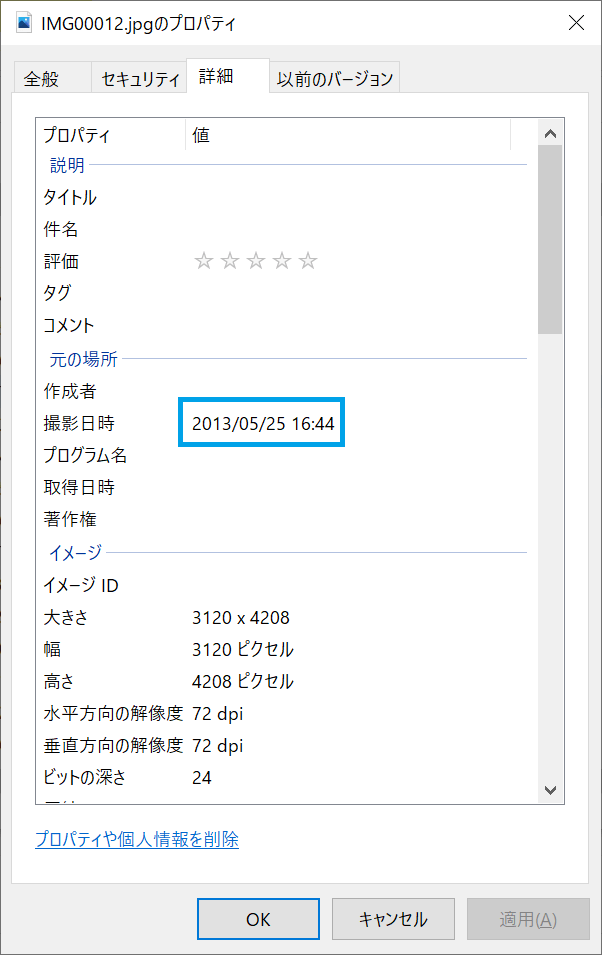
例として、C:\Users\nekon\Desktop\仕事\写真\IMG00012.jpgの内容がfileName(i)に入っているとします。

fileName(i) = C:\Users\nekon\Desktop\仕事\写真\IMG00012.jpg

ファイルパスの取得は右から”\”の記号を検索して見つけた位置までの情報を設定しています。

InStrRev(fileName(i), “\”)で位置を検索して29の数値が見つかります。

Left(fileName(i), InStrRev(fileName(i), “\”))

Left(fileName(i), 29)になり

Left(fileName(i), 29) は C:\Users\nekon\Desktop\仕事\写真\ となります。

filePath = Left(fileName(i), 29)

filePath = C:\Users\nekon\Desktop\仕事\写真\

ファイル名の取得はfileName(i)からfilePathの内容を抜いた文字列を設定しています。

C:\Users\nekon\Desktop\仕事\写真\IMG00012.jpgから

C:\Users\nekon\Desktop\仕事\写真\を抜いて

IMG00012.jpgを設定しています。

写真データの参照

Set ObjFolder = ObjShell.Namespace(filePath).ParseName(file)

写真の撮影日を取得

day = ObjFolder.ExtendedProperty("System.Photo.DateTaken")

写真のデータの参照を解放

Set ObjFolder = Nothing

セルに撮影日を設定

Cells(k + 2, j + 13) = Format(day, "yyyy年m月d日")

シェルの解放

Set ObjShell = Nothing

写真一括貼り付け処理

Sub 写真張り付け_Click()
    
    'ループ関数を設定
    Dim i As Integer, j As Integer, k As Integer
    '写真の一覧を取得
    Dim fileName As Variant
    Dim dblscal As Double
    Dim str As String
    
'←--------追加
    Dim day As Date
    Dim ObjShell As Object
    Dim ObjFolder As Object
    Dim filePath As Variant
    Dim file As Variant
    
'---------->
  
    Dim startTime As Double
    Dim endTime As Double
    Dim processTime As Double
    
  
    fileName = Application.GetOpenFilename( _
        filefilter:="画像ファイル,*.bmp;*.jpg;*.gif;*.JPG", _
        MultiSelect:=True)
    '画像ファイルを選択しなかった場合は処理を終わらせる
    If Not IsArray(fileName) Then Exit Sub
    
    '処理中画面描写をしない
    Application.ScreenUpdating = False
    
    '開始時間取得
    startTime = Timer
    
    
    '写真を貼る開始セルの列
    j = 2
    '写真を貼る開始セルの行
    k = 2
    
    '印刷範囲の初期設定
    str = Range(Cells(1, 1), Cells(60, 16)).Address
    '原本シートのコピーを末尾に追加
    Worksheets("原本").Copy After:=Worksheets(Worksheets.Count)
    'ボタンを削除
    ActiveSheet.DrawingObjects.Delete
    
    
'←--------追加
    'シェルの設定
    Set ObjShell = CreateObject("Shell.Application")
'-------→
    
    
    '取得した写真リストをセルに貼り付け
    For i = LBound(fileName) To UBound(fileName)
        If i <> 1 And i Mod 3 = 1 Then
            Worksheets("原本").Range(str).Copy
            Cells(k - 1, 1).PasteSpecial
            Application.CutCopyMode = False
            ActiveSheet.HPageBreaks.Add before:=Cells(((i \ 3) * 60) + 1, 1)
        End If
        
        '選択ファイル
        With ActiveSheet.Shapes.AddPicture( _
            fileName:=fileName(i), _
            linktofile:=False, _
            savewithdocument:=True, _
            Left:=ActiveCell.Left, _
            Top:=ActiveCell.Top, _
            Width:=ActiveCell.Width * 10, _
            Height:=ActiveCell.Height * 18)
            '結合セルの大きさに設定する場合は下記の内
            'Height:=ActiveCell.MergeArea.Height, _
            'Width:=ActiveCell.MergeArea.Width)
        End With
        
        '写真の貼り直し
        ActiveSheet.Shapes(i).Select
        Selection.Cut
        Cells(k, j).Select
        ActiveSheet.PasteSpecial Format:="図 (JPEG)", Link:=False, DisplayasIcon:=False
        Application.CutCopyMode = False
        
        
        'Noに数を記入
        Cells(k, j + 13) = i
        
'←------追加
        'ファイルのパスを取得
        filePath = Left(fileName(i), InStrRev(fileName(i), "\"))
        'ファイル名の取得
        file = Mid(fileName(i), Len(filePath) + 1)
        
        '写真のデータを参照
        Set ObjFolder = ObjShell.Namespace(filePath).ParseName(file)

        '写真の撮影日を取得
        day = ObjFolder.ExtendedProperty("System.Photo.DateTaken")
        '写真のデータの参照を解放
        Set ObjFolder = Nothing
        Cells(k + 2, j + 13) = Format(day, "yyyy年m月d日")
        
'-------→
        
        '次のセルの位置を設定する
        k = k + 20
        
    Next i
    
'←--------追加
    'シェルの解放
    Set ObjShell = Nothing
'-------→
    
    i = i - 1
    k = k - 20
    
    Select Case i Mod 3
        Case 1
            str = Range(Cells(1, 1), Cells(k + 58, 16)).Address
        Case 2
            str = Range(Cells(1, 1), Cells(k + 38, 16)).Address
        Case Else
            str = Range(Cells(1, 1), Cells(k + 18, 16)).Address
    End Select
    
    ActiveSheet.PageSetup.PrintArea = str
    
    '写真のズレを修正
    ActiveSheet.Shapes.SelectAll
    Selection.ShapeRange.LockAspectRatio = msoFalse
    Selection.ShapeRange.Height = Cells(2, 2).Height * 18
    Selection.ShapeRange.Width = Cells(2, 2).Width * 10
    
    '終了時間取得
    endTime = Timer
    
    '処理時間表示
    processTime = endTime - startTime
    MsgBox "処理時間:" & processTime
    
    Cells(1, 1).Select
    
    '画面描写を実行
    Application.ScreenUpdating = True
    
End Sub

写真一括貼り付けの撮影日を取得の処理内容の説明でした。

次回はさらに機能の追加を致します。

写真の撮影日の取得機能の追加

報告書の作成で写真の貼り付ける場合は撮影した日時を記載する事が多いため、写真データから撮影日の取得機能を追加致しました。

写真の撮影日を日程の隣のセルに表示する様に設定

撮影日が日程の隣のセルに表示されています。

写真を複数枚選択しても写真毎に撮影日を取得

選択しているファイルの撮影日が表示されています。

写真貼り付けの処理(撮影日を取得を追加)

Sub 写真張り付け_Click()
    
    'ループ関数を設定
    Dim i As Integer, j As Integer, k As Integer
    '写真の一覧を取得
    Dim fileName As Variant
    Dim dblscal As Double
    Dim str As String
    
'←--------追加
    Dim day As Date
    Dim ObjShell      As Object
    Dim ObjFolder     As Object
    Dim filePath As Variant
    Dim file As Variant
    
'---------->
    
    fileName = Application.GetOpenFilename( _
        filefilter:="画像ファイル,*.bmp;*.jpg;*.gif;*.JPG", _
        MultiSelect:=True)
    '画像ファイルを選択しなかった場合は処理を終わらせる
    If Not IsArray(fileName) Then Exit Sub
    
    '処理中画面描写をしない
    Application.ScreenUpdating = False
    
    '写真を貼る開始セルの列
    j = 2
    '写真を貼る開始セルの行
    k = 2
    
    '印刷範囲の初期設定
    str = Range(Cells(1, 1), Cells(60, 16)).Address
    '原本シートのコピーを末尾に追加
    Worksheets("原本").Copy After:=Worksheets(Worksheets.Count)
    'ボタンを削除
    ActiveSheet.DrawingObjects.Delete
    
    
'←--------追加
    'シェルの機能の参照
    Set ObjShell = CreateObject("Shell.Application")
'-------→
    
    
    '取得した写真リストをセルに貼り付け
    For i = LBound(fileName) To UBound(fileName)
        If i <> 1 And i Mod 3 = 1 Then
            Worksheets("原本").Range(str).Copy
            Cells(k - 1, 1).PasteSpecial
            Application.CutCopyMode = False
            ActiveSheet.HPageBreaks.Add before:=Cells(((i \ 3) * 60) + 1, 1)
        End If
        
        '選択ファイル
        With ActiveSheet.Shapes.AddPicture( _
            fileName:=fileName(i), _
            linktofile:=False, _
            savewithdocument:=True, _
            Left:=ActiveCell.Left, _
            Top:=ActiveCell.Top, _
            Width:=ActiveCell.Width * 10, _
            Height:=ActiveCell.Height * 18)
            '結合セルの大きさに設定する場合は下記の内
            'Height:=ActiveCell.MergeArea.Height, _
            'Width:=ActiveCell.MergeArea.Width)
        End With
        
        '写真の貼り直し
        ActiveSheet.Shapes(i).Select
        Selection.Cut
        Cells(k, j).Select
        ActiveSheet.PasteSpecial Format:="図 (JPEG)", Link:=False, DisplayasIcon:=False
        Application.CutCopyMode = False
        
        
        'Noに数を記入
        Cells(k, j + 13) = i
        
'←------追加
        'ファイルのパスを取得
        filePath = Left(fileName(i), InStrRev(fileName(i), "\"))
        'ファイル名の取得
        file = Mid(fileName(i), Len(filePath) + 1)
        
        '写真のデータを参照
        Set ObjFolder = ObjShell.Namespace(filePath).ParseName(file)

        '写真の撮影日を取得
        day = ObjFolder.ExtendedProperty("System.Photo.DateTaken")
        '写真のデータの参照を解放
        Set ObjFolder = Nothing
        Cells(k + 2, j + 13) = Format(day, "yyyy年m月d日")
        
'-------→
        
        '次のセルの位置を設定する
        k = k + 20
        
    Next i
    
'←--------追加
    'シェルの解放
    Set ObjShell = Nothing
'-------→
    
    i = i - 1
    k = k - 20
    
    Select Case i Mod 3
        Case 1
            str = Range(Cells(1, 1), Cells(k + 58, 16)).Address
        Case 2
            str = Range(Cells(1, 1), Cells(k + 38, 16)).Address
        Case Else
            str = Range(Cells(1, 1), Cells(k + 18, 16)).Address
    End Select
    
    ActiveSheet.PageSetup.PrintArea = str
    
    '写真のズレを修正
    ActiveSheet.Shapes.SelectAll
    Selection.ShapeRange.LockAspectRatio = msoFalse
    Selection.ShapeRange.Height = Cells(2, 2).Height * 18
    Selection.ShapeRange.Width = Cells(2, 2).Width * 10
    
    Cells(1, 1).Select
    
    '画面描写を実行
    Application.ScreenUpdating = True
    
End Sub

処理の追加部分は←—-追加と表記しています。

次回は追加部分の処理の説明を行います。

写真の一括貼り付け処理の流れ

今回は写真一括貼り付け処理の流れを説明していきます。

処理ごとにExcel上でどの様に動いているか画像を貼り付けていきます。

変数の宣言

    'ループ関数を設定
    Dim i As Integer, j As Integer, k As Integer
    
    Dim FileName As Variant
    Dim dblscal As Double
    Dim str As String

処理の追加修正を後に行いやすくするため、最初に宣言しています。

写真の一覧を取得

'写真の一覧を取得
FileName = Application.GetOpenFilename( _
    filefilter:="画像ファイル,*.bmp;*.jpg;*.gif;*.JPG", _
    MultiSelect:=True)
'写真ファイルを選択しなかった場合は処理を終わらせる
If Not IsArray(FileName) Then Exit Sub

キャンセルを押下時は処理が終了します。

処理中画面描写をしない

    Application.ScreenUpdating = False

処理中の過程を表示してしまうと処理速度が遅くなってしまうため、画面描写を行わないようにしています。

印刷範囲の初期設定

str = Range(Cells(1, 1), Cells(60, 16)).Address

原本シートのコピーを末尾に追加

Worksheets("原本").Copy After:=Worksheets(Worksheets.Count)

貼り付ける写真を間違えても追加したシートを削除する事で作り直しが容易にしています。

ボタンを削除

    ActiveSheet.DrawingObjects.Delete

シートを追加するとボタンまでコピーされるためボタンの削除を行います。

取得した写真リストをセルに貼り付け

取得した写真リストの数だけ繰り返し処理を行う

For i = LBound(FileName) To UBound(FileName)

取得した写真のリスト分だけ繰り返し処理を行います。

5枚選択したら5回、10枚選択したら10回

写真のリストの数が3で割って余りが1になったら処理を行う

If i <> 1 And i Mod 3 = 1 Then

1ページに写真を3枚貼ったら次のページに設定を行うための判定です。

印刷範囲の初期設定のエリアをコピー

Worksheets("原本").Range(str).Copy

次の写真を貼り付けるためのエリアを貼り付け

Cells(k - 1, 1).PasteSpecial

コピーした領域を解放

Application.CutCopyMode = False

改ページの挿入

ActiveSheet.HPageBreaks.Add before:=Cells(((i \ 3) * 60) + 1, 1)

判定の終了

End If

写真を貼り付ける位置を設定

Cells(k, j).Select

写真の貼り付け

        With ActiveSheet.Shapes.AddPicture( _
            FileName:=FileName(i), _
            linktofile:=False, _
            savewithdocument:=True, _
            Left:=ActiveCell.Left, _
            Top:=ActiveCell.Top, _
            Width:=ActiveCell.Width * 10, _
            Height:=ActiveCell.Height * 18)
            '結合セルの大きさに設定する場合は下記の内
            'Height:=ActiveCell.MergeArea.Height, _
            'Width:=ActiveCell.MergeArea.Width)
        End With

写真の貼り直し

        ActiveSheet.Shapes(i).Select
        Selection.Cut
        ActiveSheet.PasteSpecial Format:="図 (JPEG)", Link:=False, DisplayasIcon:=False
        Application.CutCopyMode = False

Noに何枚目か数を入力

Cells(k, j + 13) = i

次のセルの位置を設定する

k = k + 20

次の写真を選択

Next i

上の繰り返し処理に戻る。

写真の枚数を-1する

i = i - 1

繰り返し処理が終わったときは写真の枚数+1になっているため-1する。

選択しているセルの位置も1つ前に戻す

k = k - 20

写真の枚数を3で割って余りの数により処理を変更

    Select Case i Mod 3
        Case 1
            str = Range(Cells(1, 1), Cells(k + 58, 16)).Address
        Case 2
            str = Range(Cells(1, 1), Cells(k + 38, 16)).Address
        Case Else
            str = Range(Cells(1, 1), Cells(k + 18, 16)).Address
    End Select

印刷範囲の設定

ActiveSheet.PageSetup.PrintArea = str

写真のズレを修正

    ActiveSheet.Shapes.SelectAll
    Selection.ShapeRange.LockAspectRatio = msoFalse
    Selection.ShapeRange.Height = Cells(2, 2).Height * 18
    Selection.ShapeRange.Width = Cells(2, 2).Width * 10

画面描写を実行

Application.ScreenUpdating = True

上記の処理で写真のズレを修正までの内容が画面上に描画されます。

処理全体の内容

Sub 写真張り付け_Click()
    
    'ループ関数を設定
    Dim i As Integer, j As Integer, k As Integer
    
    Dim FileName As Variant
    Dim dblscal As Double
    Dim str As String
  
    '写真の一覧を取得
    FileName = Application.GetOpenFilename( _
        filefilter:="画像ファイル,*.bmp;*.jpg;*.gif;*.JPG", _
        MultiSelect:=True)
    '写真ファイルを選択しなかった場合は処理を終わらせる
    If Not IsArray(FileName) Then Exit Sub
    
    '処理中画面描写をしない
    Application.ScreenUpdating = False
    
    
    '写真を貼る開始セルの列
    j = 2
    '写真を貼る開始セルの行
    k = 2
    
    '印刷範囲の初期設定
    str = Range(Cells(1, 1), Cells(60, 16)).Address
    '原本シートのコピーを末尾に追加
    Worksheets("原本").Copy After:=Worksheets(Worksheets.Count)
    'ボタンを削除
    ActiveSheet.DrawingObjects.Delete
    
    '取得した写真リストをセルに貼り付け
    For i = LBound(FileName) To UBound(FileName)
        If i <> 1 And i Mod 3 = 1 Then
            Worksheets("原本").Range(str).Copy
            Cells(k - 1, 1).PasteSpecial
            Application.CutCopyMode = False
            ActiveSheet.HPageBreaks.Add before:=Cells(((i \ 3) * 60) + 1, 1)
        End If
        Cells(k, j).Select
        
        '選択ファイル
        With ActiveSheet.Shapes.AddPicture( _
            FileName:=FileName(i), _
            linktofile:=False, _
            savewithdocument:=True, _
            Left:=ActiveCell.Left, _
            Top:=ActiveCell.Top, _
            Width:=ActiveCell.Width * 10, _
            Height:=ActiveCell.Height * 18)
            '結合セルの大きさに設定する場合は下記の内
            'Height:=ActiveCell.MergeArea.Height, _
            'Width:=ActiveCell.MergeArea.Width)
        End With
        
        '写真の貼り直し
        ActiveSheet.Shapes(i).Select
        Selection.Cut
        ActiveSheet.PasteSpecial Format:="図 (JPEG)", Link:=False, DisplayasIcon:=False
        Application.CutCopyMode = False
        
        
        'Noに数を記入
        Cells(k, j + 13) = i
        
        '次のセルの位置を設定する
        k = k + 20
        
    Next i
        
    i = i - 1
    k = k - 20
    
    '印刷範囲を設定
    Select Case i Mod 3
        Case 1
            str = Range(Cells(1, 1), Cells(k + 58, 16)).Address
        Case 2
            str = Range(Cells(1, 1), Cells(k + 38, 16)).Address
        Case Else
            str = Range(Cells(1, 1), Cells(k + 18, 16)).Address
    End Select
    
    ActiveSheet.PageSetup.PrintArea = str
    
    '写真のズレを修正
    ActiveSheet.Shapes.SelectAll
    Selection.ShapeRange.LockAspectRatio = msoFalse
    Selection.ShapeRange.Height = Cells(2, 2).Height * 18
    Selection.ShapeRange.Width = Cells(2, 2).Width * 10
    
    
    Cells(1, 1).Select
    
    '画面描写を実行
    Application.ScreenUpdating = True
    
End Sub

今回は処理の全体を説明させて頂きました。
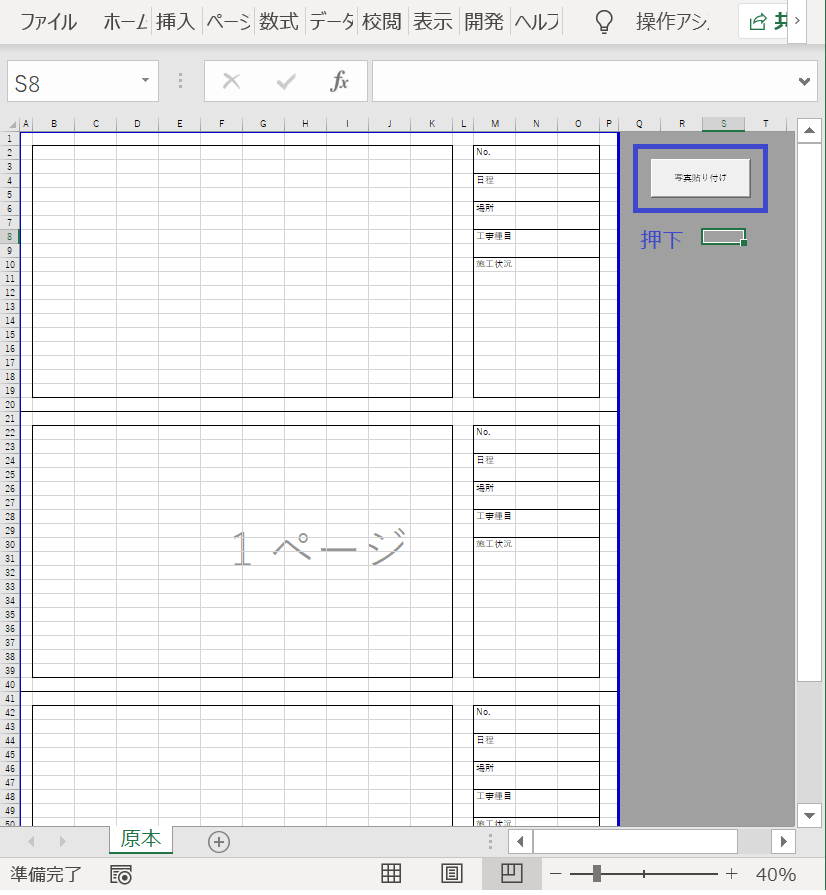
これだけの処理内容ではまだ自動化と呼べないので次回は機能の追加を行っていきます。

改ページの挿入と印刷範囲を設定について

資料を作成した時に印刷範囲の設定や改ページを挿入したりするので今回はこちらを紹介します。

VBAでの改ページや印刷範囲の設定方法

改ページの設定

ActiveSheet.HPageBreaks.Add before:=Cells(挿入したい位置)

印刷範囲の設定

ActiveSheet.PageSetup.PrintArea = Range(Cells(印刷設定したい初期位置), Cells(印刷設定したい範囲)).Address

50枚の写真を読み込ませて処理の実行

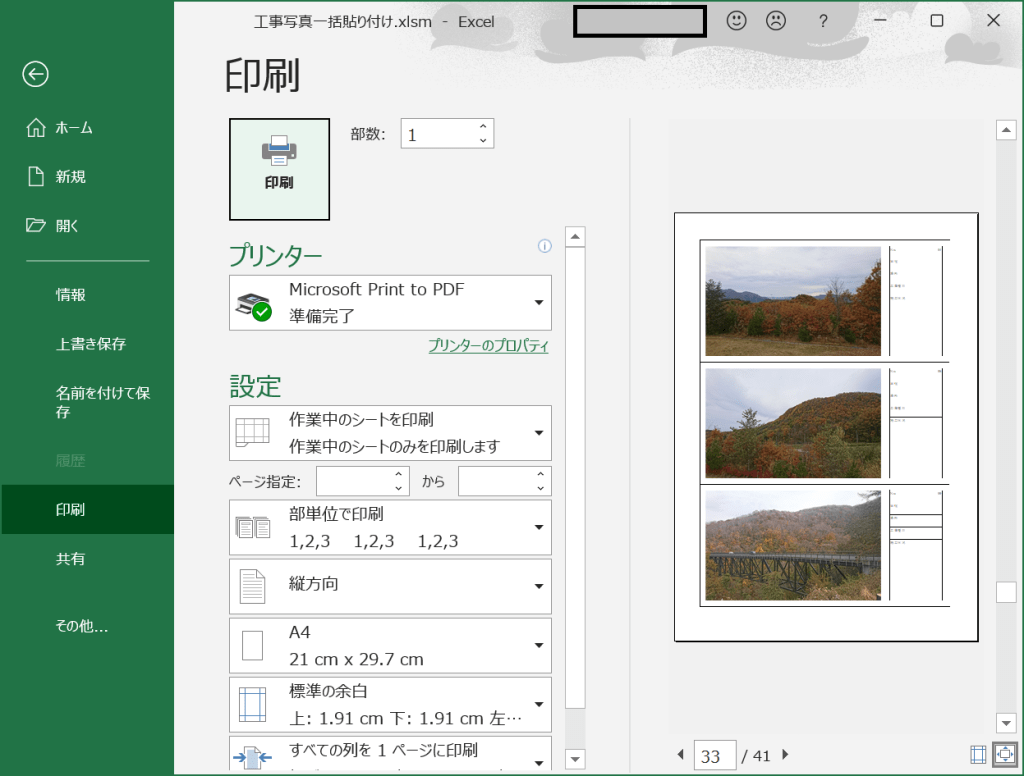
写真3枚毎に改ページを挿入する様に設定

改ページの処理内容

            ActiveSheet.HPageBreaks.Add before:=Cells(((i \ 3) * 60) + 1, 1)

印刷範囲の設定

50枚写真を読み込んでいるため51枚目は空白

印刷範囲の処理内容

    Select Case i Mod 3
        Case 1
            str = Range(Cells(1, 1), Cells(k + 58, 16)).Address
        Case 2
            str = Range(Cells(1, 1), Cells(k + 38, 16)).Address
        Case Else
            str = Range(Cells(1, 1), Cells(k + 18, 16)).Address
    End Select
    
    ActiveSheet.PageSetup.PrintArea = str

写真の枚数に合わせて印刷範囲を設定する事も可能

処理内容

    str = Range(Cells(1, 1), Cells(k + 18, 16)).Address
    
    ActiveSheet.PageSetup.PrintArea = str

写真一括貼り付け処理の改ページの挿入と印刷範囲の設定箇所

Sub 写真張り付け_Click()
    
    'ループ関数を設定
    Dim i As Integer, j As Integer, k As Integer
    
    Dim FileName As Variant
    Dim dblscal As Double
    Dim str As String
  
    Dim startTime As Double
    Dim endTime As Double
    Dim processTime As Double

  
    '写真の一覧を取得
    FileName = Application.GetOpenFilename( _
        filefilter:="画像ファイル,*.bmp;*.jpg;*.gif;*.JPG", _
        MultiSelect:=True)
    '写真ファイルを選択しなかった場合は処理を終わらせる
    If Not IsArray(FileName) Then Exit Sub
    
    '処理中画面描写をしない
    Application.ScreenUpdating = False
    
    '開始時間取得
    startTime = Timer
    
    
    '写真を貼る開始セルの列
    j = 2
    '写真を貼る開始セルの行
    k = 2
    
    '印刷範囲の初期設定
    str = Range(Cells(1, 1), Cells(60, 16)).Address
    '原本シートのコピーを末尾に追加
    Worksheets("原本").Copy After:=Worksheets(Worksheets.Count)
    'ボタンを削除
    ActiveSheet.DrawingObjects.Delete
    
    '取得した写真リストをセルに貼り付け
    For i = LBound(FileName) To UBound(FileName)
        If i <> 1 And i Mod 3 = 1 Then
            Worksheets("原本").Range(str).Copy
            Cells(k - 1, 1).PasteSpecial
            Application.CutCopyMode = False

'←-------------改ページの挿入
            ActiveSheet.HPageBreaks.Add before:=Cells(((i \ 3) * 60) + 1, 1)
'-----------------→

        End If
        Cells(k, j).Select
        
        '選択ファイル
        With ActiveSheet.Shapes.AddPicture( _
            FileName:=FileName(i), _
            linktofile:=False, _
            savewithdocument:=True, _
            Left:=ActiveCell.Left, _
            Top:=ActiveCell.Top, _
            Width:=ActiveCell.Width * 10, _
            Height:=ActiveCell.Height * 18)
            '結合セルの大きさに設定する場合は下記の内
            'Height:=ActiveCell.MergeArea.Height, _
            'Width:=ActiveCell.MergeArea.Width)
        End With
        
        '写真の貼り直し
        ActiveSheet.Shapes(i).Select
        Selection.Cut
        ActiveSheet.PasteSpecial Format:="図 (JPEG)", Link:=False, DisplayasIcon:=False
        Application.CutCopyMode = False
        
        
        'Noに数を記入
        Cells(k, j + 13) = i
        
        '次のセルの位置を設定する
        k = k + 20
        
    Next i
        
    i = i - 1
    k = k - 20
    
'←--------------------------------------
    '印刷範囲を設定
    Select Case i Mod 3
        Case 1
            str = Range(Cells(1, 1), Cells(k + 58, 16)).Address
        Case 2
            str = Range(Cells(1, 1), Cells(k + 38, 16)).Address
        Case Else
            str = Range(Cells(1, 1), Cells(k + 18, 16)).Address
    End Select
    
'    str = Range(Cells(1, 1), Cells(k + 18, 16)).Address
    
    ActiveSheet.PageSetup.PrintArea = str
'----------------------------------→
    
    '写真のズレを修正
    ActiveSheet.Shapes.SelectAll
    Selection.ShapeRange.LockAspectRatio = msoFalse
    Selection.ShapeRange.Height = Cells(2, 2).Height * 18
    Selection.ShapeRange.Width = Cells(2, 2).Width * 10
    
    '終了時間取得
    endTime = Timer
    
    '処理時間表示
    processTime = endTime - startTime
    MsgBox "処理時間:" & processTime
    
    Cells(1, 1).Select
    
    '画面描写を実行
    Application.ScreenUpdating = True
    
End Sub

今回も処理の内容を説明させて頂きました。
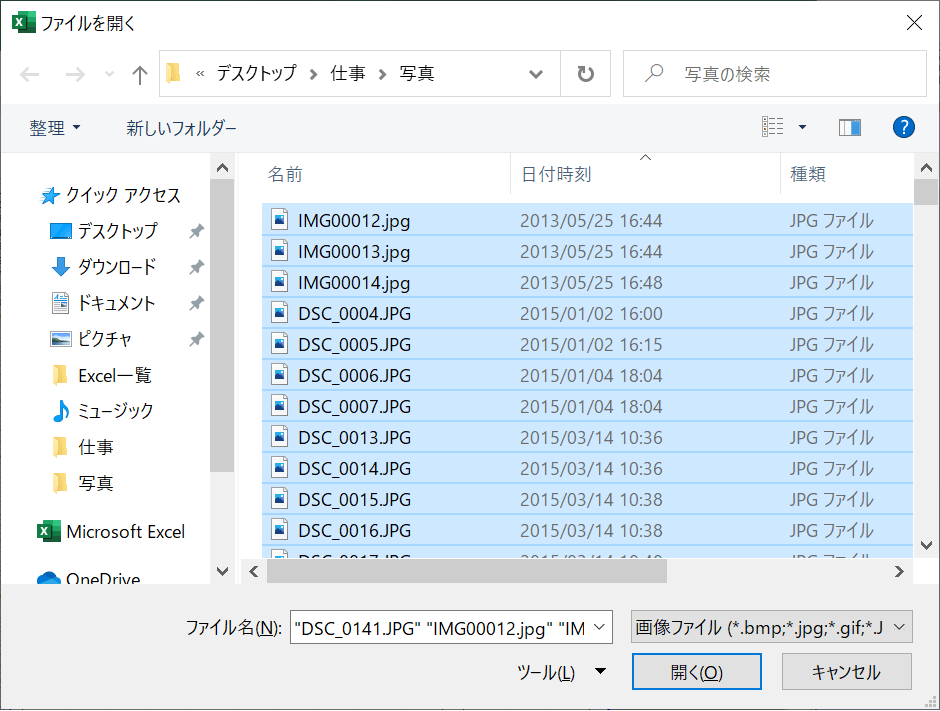
次回は処理全体の流れを説明します。

写真容量の縮小と処理時間

前回の内容で写真一括貼り付けの処理でJPEGに貼り直しを行った場合、ファイル容量の差と処理時間を説明します。

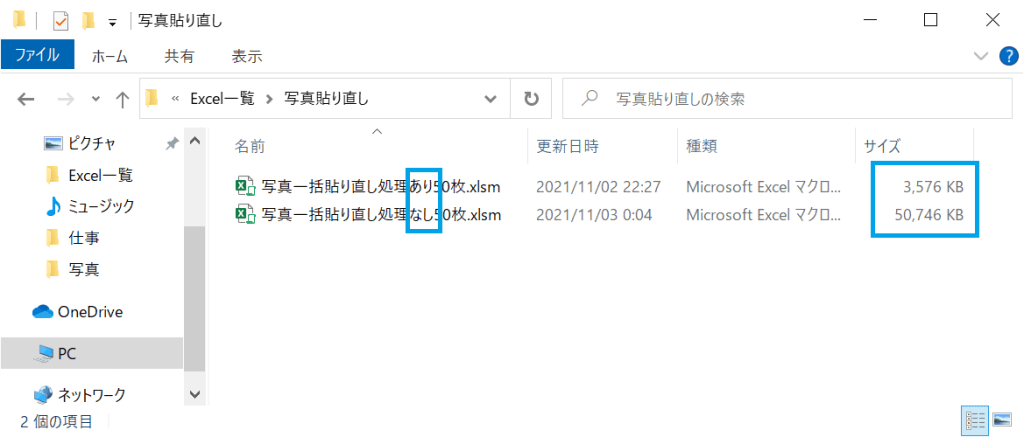
写真の貼り直しを行う場合と行わない場合の容量と処理時間の結果

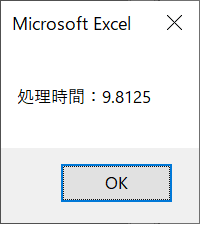
  • 写真の貼り直しあり
    • ファイル容量が軽い
    • 処理速度が少し遅い
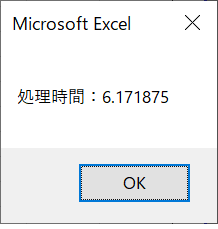
  • 写真の貼り直しなし
    • ファイル容量がかなり重い
    • 処理速度が速い

※処理速度はPCの性能によって変動します。

ファイル容量にかなり差が出るので写真貼り付けマクロを組む場合は写真の貼り直し処理を行う事をおすすめします。

スマホで撮った写真50枚の貼り付け結果

結果は貼り直し処理ありなし共に同じです。

写真の貼り直し処理ありなしの容量と処理時間

写真貼り直し処理ありの処理時間

写真貼り直し処理なしの処理時間

写真データは容量が大きい

写真を50枚Excelに貼り付けを行った場合かなりの容量が必要となります。

写真の貼り直し処理の説明

写真一括貼り付けコードのJPEGに貼り直しの処理

        ActiveSheet.Shapes(i).Select
        Selection.Cut
        ActiveSheet.PasteSpecial Format:="図 (JPEG)", Link:=False, DisplayasIcon:=False
        Application.CutCopyMode = False

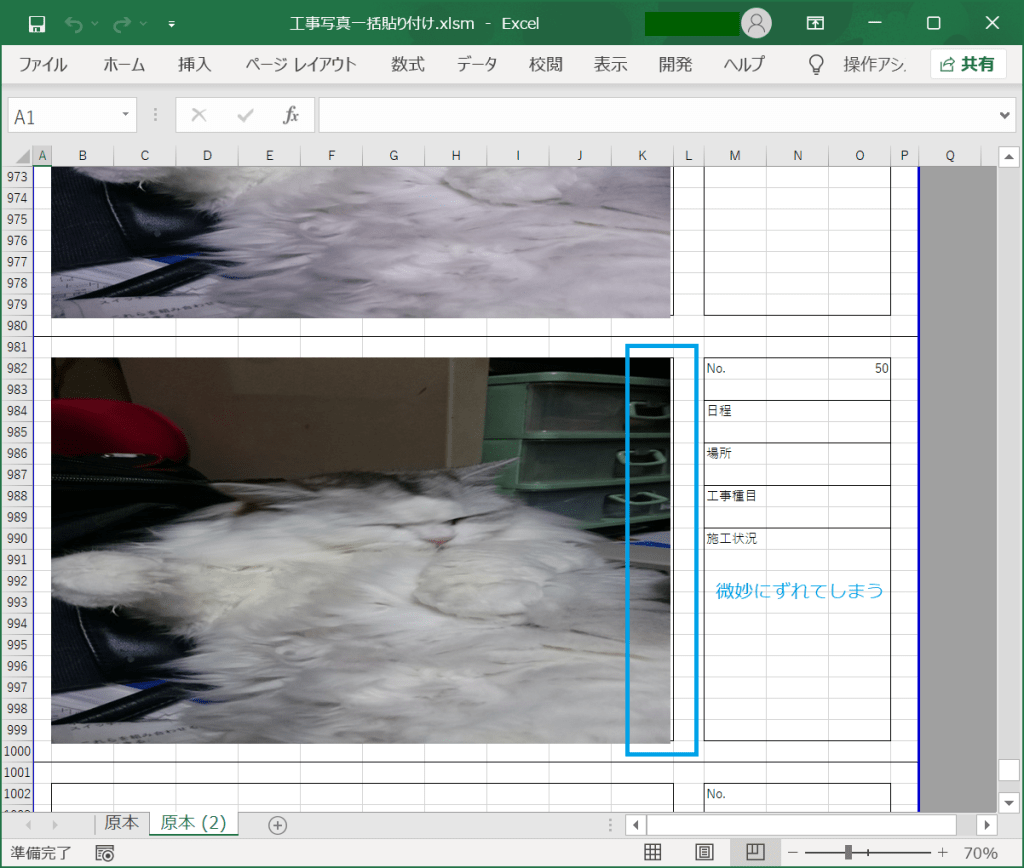
写真の貼り直し処理を行った時に画像の大きさが微妙に変更される

画像の大きさが変更されたため、画像全体の大きさを修正

    ActiveSheet.Shapes.SelectAll
    Selection.ShapeRange.LockAspectRatio = msoFalse
    Selection.ShapeRange.Height = Cells(2, 2).Height * 18
    Selection.ShapeRange.Width = Cells(2, 2).Width * 10

写真の一括貼り付けの内容での使用箇所

Sub 写真張り付け_Click()
    
    'ループ関数を設定
    Dim i As Integer, j As Integer, k As Integer

    Dim FileName As Variant
    Dim dblscal As Double
    Dim str As String
  
    Dim startTime As Double
    Dim endTime As Double
    Dim processTime As Double

  
    '写真の一覧を取得
    FileName = Application.GetOpenFilename( _
        filefilter:="画像ファイル,*.bmp;*.jpg;*.gif;*.JPG", _
        MultiSelect:=True)
    '画像ファイルを選択しなかった場合は処理を終わらせる
    If Not IsArray(FileName) Then Exit Sub
    
    '処理中画面描写をしない
    Application.ScreenUpdating = False
    
    '開始時間取得
    startTime = Timer
    
    
    '写真を貼る開始セルの列
    j = 2
    '写真を貼る開始セルの行
    k = 2
    
    '印刷範囲の初期設定
    str = Range(Cells(1, 1), Cells(60, 16)).Address
    '原本シートのコピーを末尾に追加
    Worksheets("原本").Copy After:=Worksheets(Worksheets.Count)
    'ボタンを削除
    ActiveSheet.DrawingObjects.Delete
    
    '取得した写真リストをセルに貼り付け
    For i = LBound(FileName) To UBound(FileName)
        If i <> 1 And i Mod 3 = 1 Then
            Worksheets("原本").Range(str).Copy
            Cells(k - 1, 1).PasteSpecial
            Application.CutCopyMode = False
            ActiveSheet.HPageBreaks.Add before:=Cells(((i \ 3) * 60) + 1, 1)
        End If
        
        Cells(k, j).Select
        
        '選択ファイル
        With ActiveSheet.Shapes.AddPicture( _
            FileName:=FileName(i), _
            linktofile:=False, _
            savewithdocument:=True, _
            Left:=ActiveCell.Left, _
            Top:=ActiveCell.Top, _
            Width:=ActiveCell.Width * 10, _
            Height:=ActiveCell.Height * 18)
            '結合セルの大きさに設定する場合は下記の内
            'Height:=ActiveCell.MergeArea.Height, _
            'Width:=ActiveCell.MergeArea.Width)
        End With
        
'←-----こちらが画像の貼り直し箇所

        ActiveSheet.Shapes(i).Select
        Selection.Cut
        ActiveSheet.PasteSpecial Format:="図 (JPEG)", Link:=False, DisplayasIcon:=False
        Application.CutCopyMode = False

'---------------------------------→

        
        'Noに数を記入
        Cells(k, j + 13) = i
        
        '次のセルの位置を設定する
        k = k + 20
        
    Next i
    
    'コピー範囲を解放
    
    i = i - 1
    k = k - 20
    
    Select Case i Mod 3
        Case 1
            str = Range(Cells(1, 1), Cells(k + 58, 16)).Address
        Case 2
            str = Range(Cells(1, 1), Cells(k + 38, 16)).Address
        Case Else
            str = Range(Cells(1, 1), Cells(k + 18, 16)).Address
    End Select
    
    ActiveSheet.PageSetup.PrintArea = str
    
    ’←写真の貼り直しを行った場合は大きさが微妙にずれるので大きさを調整する箇所

    ActiveSheet.Shapes.SelectAll
    Selection.ShapeRange.LockAspectRatio = msoFalse
    Selection.ShapeRange.Height = Cells(2, 2).Height * 18
    Selection.ShapeRange.Width = Cells(2, 2).Width * 10

    '----------------------------------------→
    
    '終了時間取得
    endTime = Timer
    
    '処理時間表示
    processTime = endTime - startTime
    MsgBox "処理時間:" & processTime
    
    Cells(1, 1).Select
    
    '画面描写を実行
    Application.ScreenUpdating = True
    
End Sub

今回は写真の容量と処理時間について記載致しました。

次回も処理の内容の解説を行います。

写真の一括貼り付けVBA

作業報告書などで写真の貼り付けて提出などの作業は、色々と利用するため今回はこちらを紹介します。

ボタン押下時の実行内容

・貼り付けたい写真の一覧を選択

・印刷範囲を設定しながら写真を指定の位置に貼り付け

今回のポイント

・貼り付け時に写真データの縮小を行っているため、ファイルの容量が少なくしている事

・改ページを挿入しているため、写真の貼り付け後にすぐに印刷が可能な点

Excelファイル

処理の順番の説明

・写真の取り込み

・シートをコピーして末尾に追加

・指定の位置に貼り付け

・写真容量が大きいのでデータの縮小のためJPEGで貼り直し

・写真のNoをセルに記入

・写真の大きさをセルに合わせる

・印刷範囲の設定

処理の実行

印刷範囲を設定しているので印刷もすぐに可能

写真張り付けボタン押下時の処理

Sub 写真張り付け_Click()
    
    'ループ関数を設定
    Dim i As Integer, j As Integer, k As Integer
    Dim FileName As Variant
    Dim dblscal As Double
    Dim str As String
  
   '写真の一覧を取得
    FileName = Application.GetOpenFilename( _
        filefilter:="画像ファイル,*.bmp;*.jpg;*.gif;*.JPG", _
        MultiSelect:=True)
    '写真ファイルを選択しなかった場合は処理を終わらせる
    If Not IsArray(FileName) Then Exit Sub
    
    '処理中画面描写をしない
    Application.ScreenUpdating = False
        
    '写真を貼る開始セルの列
    j = 2
    '写真を貼る開始セルの行
    k = 2
    
    '印刷範囲の初期設定
    str = Range(Cells(1, 1), Cells(60, 16)).Address
    '原本シートのコピーを末尾に追加
    Worksheets("原本").Copy After:=Worksheets(Worksheets.Count)
    'ボタンを削除
    ActiveSheet.DrawingObjects.Delete
    
    '取得した写真リストをセルに貼り付け
    For i = LBound(FileName) To UBound(FileName)
        If i <> 1 And i Mod 3 = 1 Then
            Worksheets("原本").Range(str).Copy
            Cells(k - 1, 1).PasteSpecial
            Application.CutCopyMode = False
            ActiveSheet.HPageBreaks.Add before:=Cells(((i \ 3) * 60) + 1, 1)
        End If

        Cells(k, j).Select
        
        '選択ファイル
        With ActiveSheet.Shapes.AddPicture( _
            FileName:=FileName(i), _
            linktofile:=False, _
            savewithdocument:=True, _
            Left:=ActiveCell.Left, _
            Top:=ActiveCell.Top, _
            Width:=ActiveCell.Width * 10, _
            Height:=ActiveCell.Height * 18)
            '結合セルの大きさに設定する場合は下記の内容
            'Height:=ActiveCell.MergeArea.Height, _
            'Width:=ActiveCell.MergeArea.Width)
        End With
        
        ActiveSheet.Shapes(i).Select
        Selection.Cut
        ActiveSheet.PasteSpecial Format:="図 (JPEG)", Link:=False,DisplayasIcon:=False
        Application.CutCopyMode = False
        
        
        'Noに数を記入
        Cells(k, j + 13) = i
        
        '次のセルの位置を設定する
        k = k + 20
        
    Next i
    
    'コピー範囲を解放
    
    i = i - 1
    k = k - 20
    
    Select Case i Mod 3
        Case 1
            str = Range(Cells(1, 1), Cells(k + 58, 16)).Address
        Case 2
            str = Range(Cells(1, 1), Cells(k + 38, 16)).Address
        Case Else
            str = Range(Cells(1, 1), Cells(k + 18, 16)).Address
    End Select
    
    ActiveSheet.PageSetup.PrintArea = str
    
    
    ActiveSheet.Shapes.SelectAll
    Selection.ShapeRange.LockAspectRatio = msoFalse
    Selection.ShapeRange.Height = Cells(2, 2).Height * 18
    Selection.ShapeRange.Width = Cells(2, 2).Width * 10
    
    Cells(1, 1).Select
    
    '画面描写を実行
    Application.ScreenUpdating = True
    
End Sub


今回は上記のコードを実行した場合に行われる流れを確認していただきました。処理内容の解説は後日行います。